Tomasz Korwel
programmer, administrator, engineer – my everyday fights with reality

November 4th, 2012

Apple fusion drive on late 2010 MacBook Pro

Posted by tomasz in tips & tricks vault

Inspired by an Jinx’s article about building your own Apple fusion drive I’ve decided to take it one step further and brew my own with full Os X installation on it.

Here is how I did it.

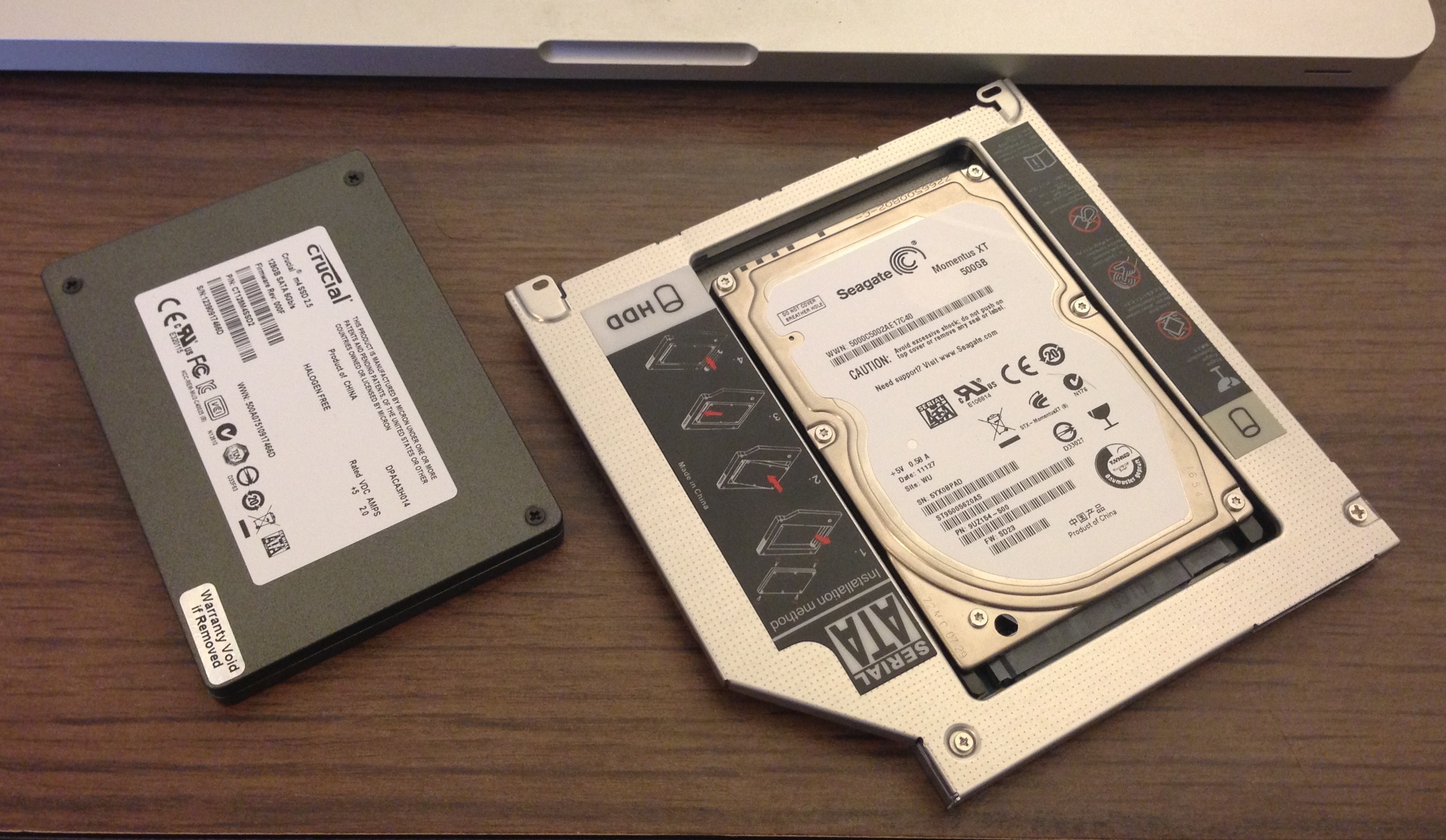
First things first, I needed to put two drives in my Mac. I already had Crucial M4 SSD and 500GB HDD so I bought hard drive caddy and put my 500GB Momentus XT in it:
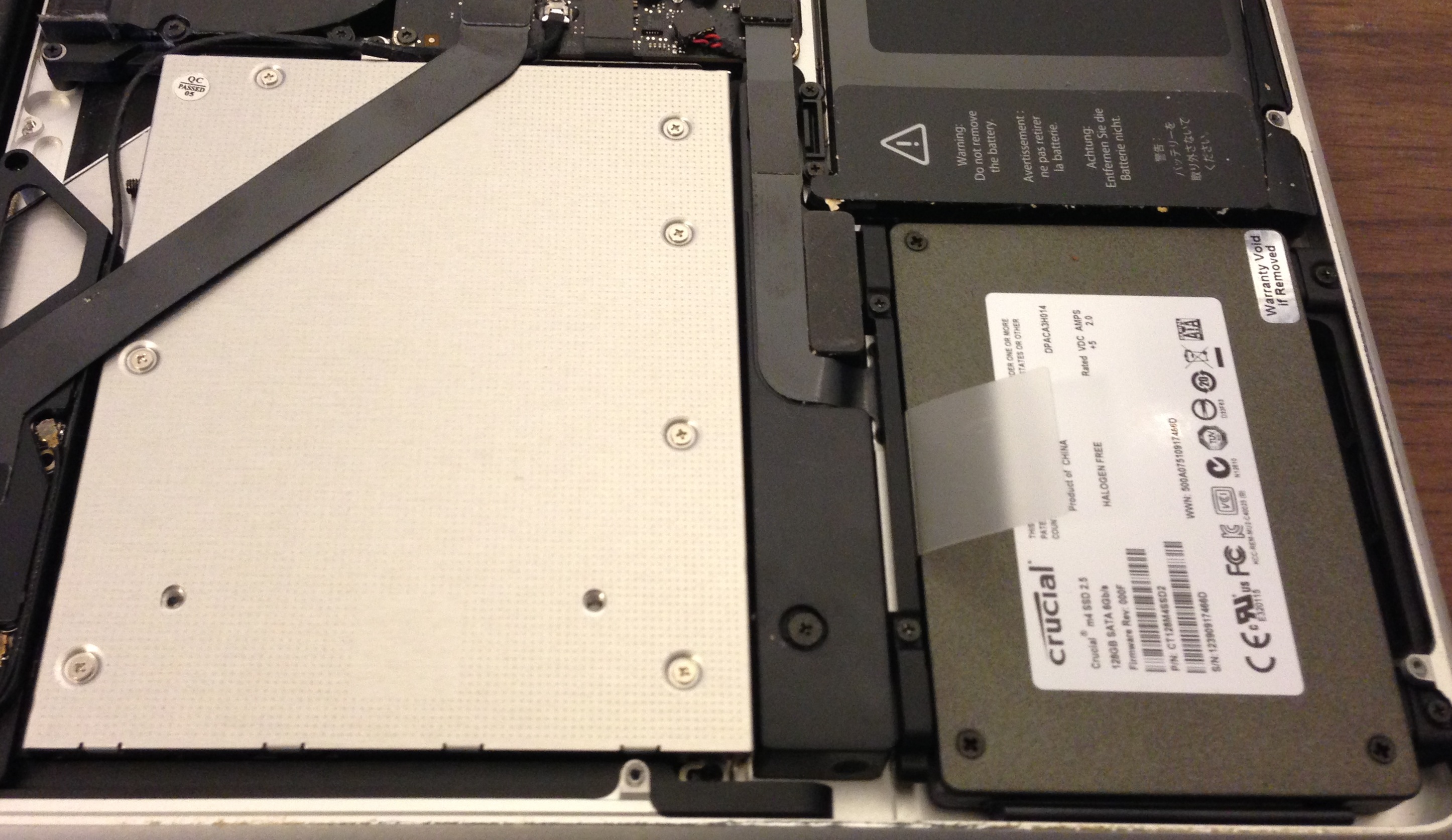
Here you can see both my SSD and HDD installed in late 2010 unibody MacBook Pro:
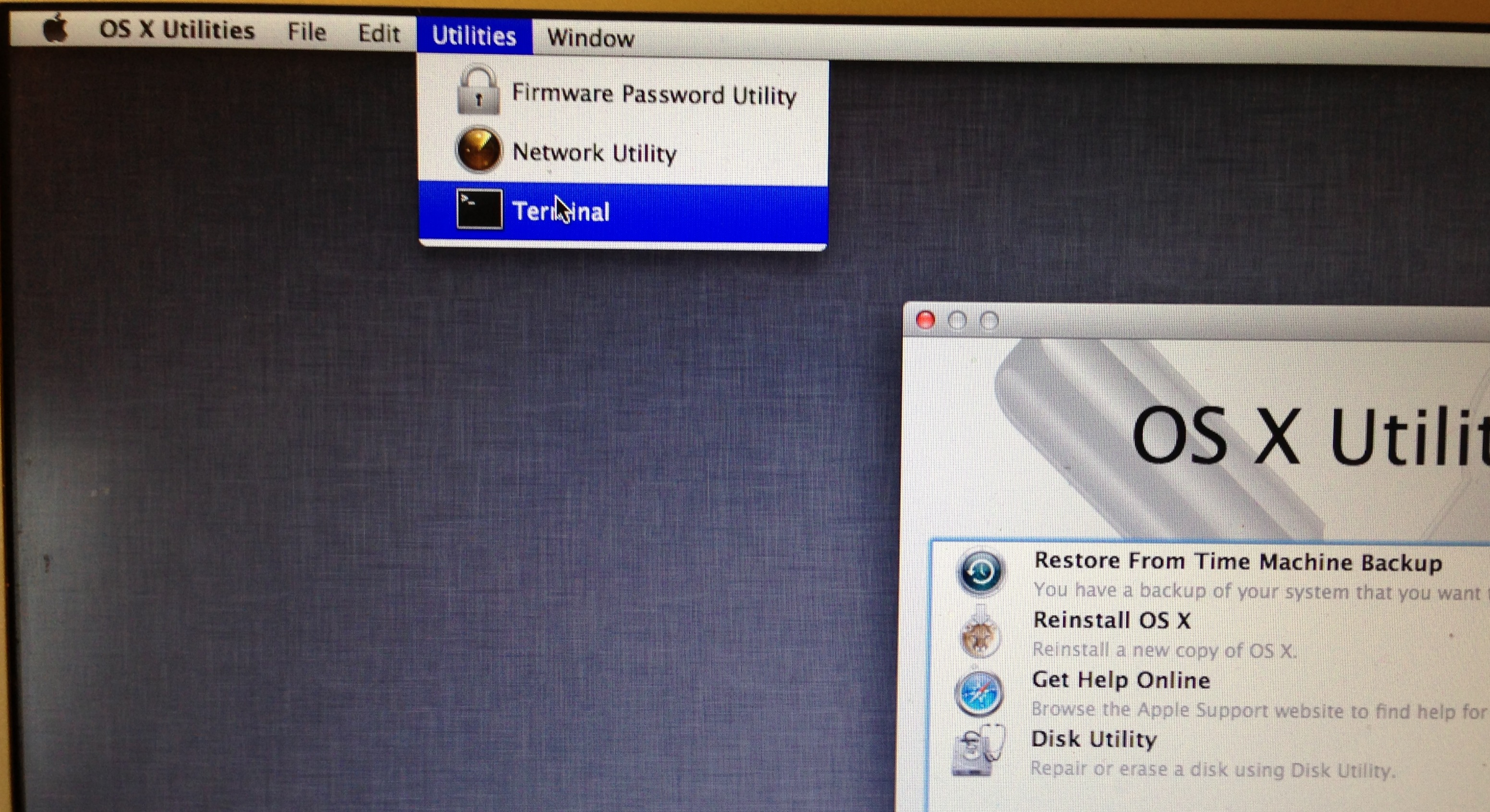
That was the easy part. Now how to make them work? I Jinx’s article you can read that GUI Disk Util does not offer needed functionality. It’s available only in command line version. But from my previous installation I remembered that there is acces to terminal in Os X recovery mode:
It was downhill from there. Create Logical Volume Group:
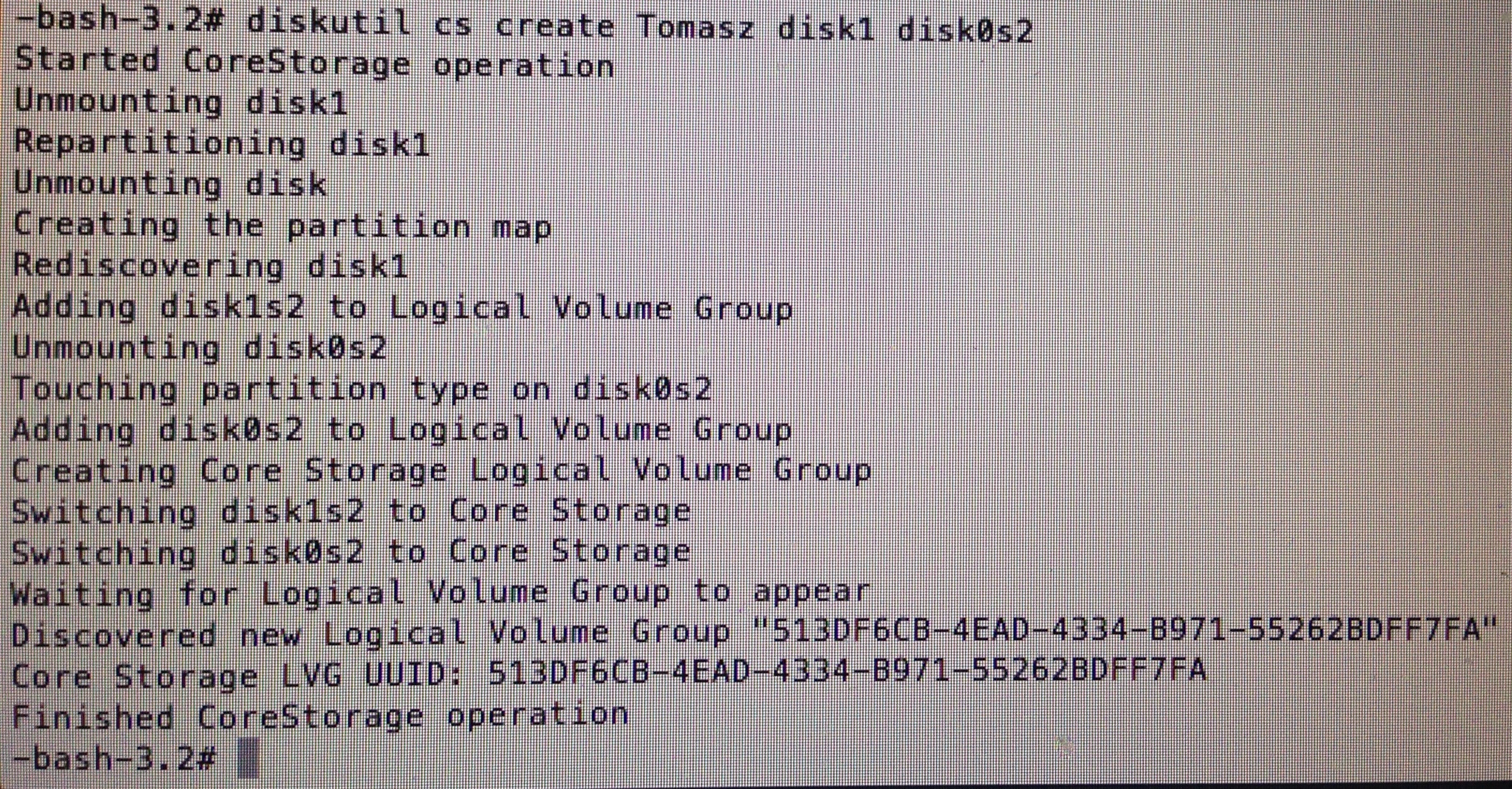
get UUID:
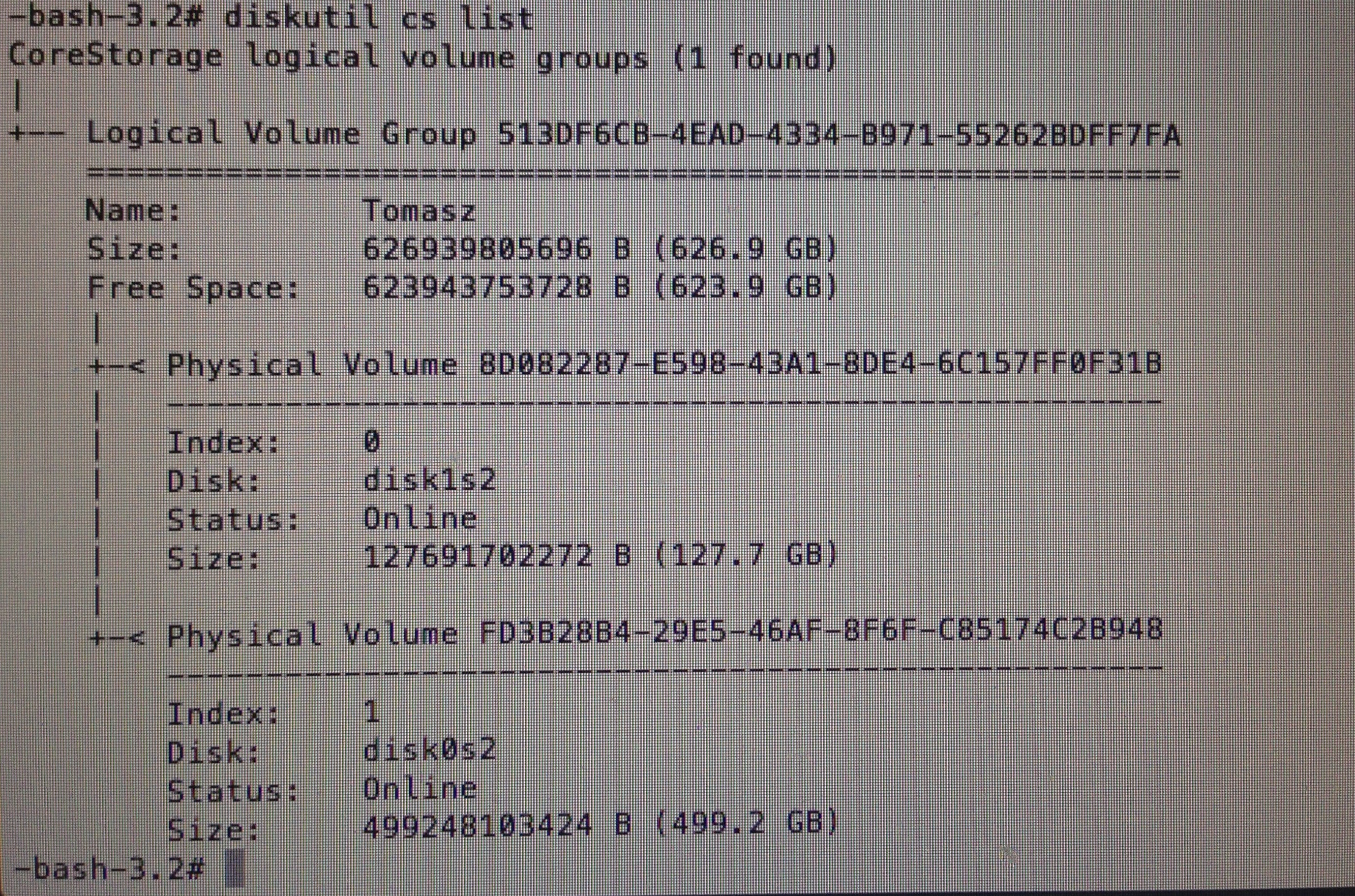
Create volume:

As you can see Os X Installation recognized such volume:
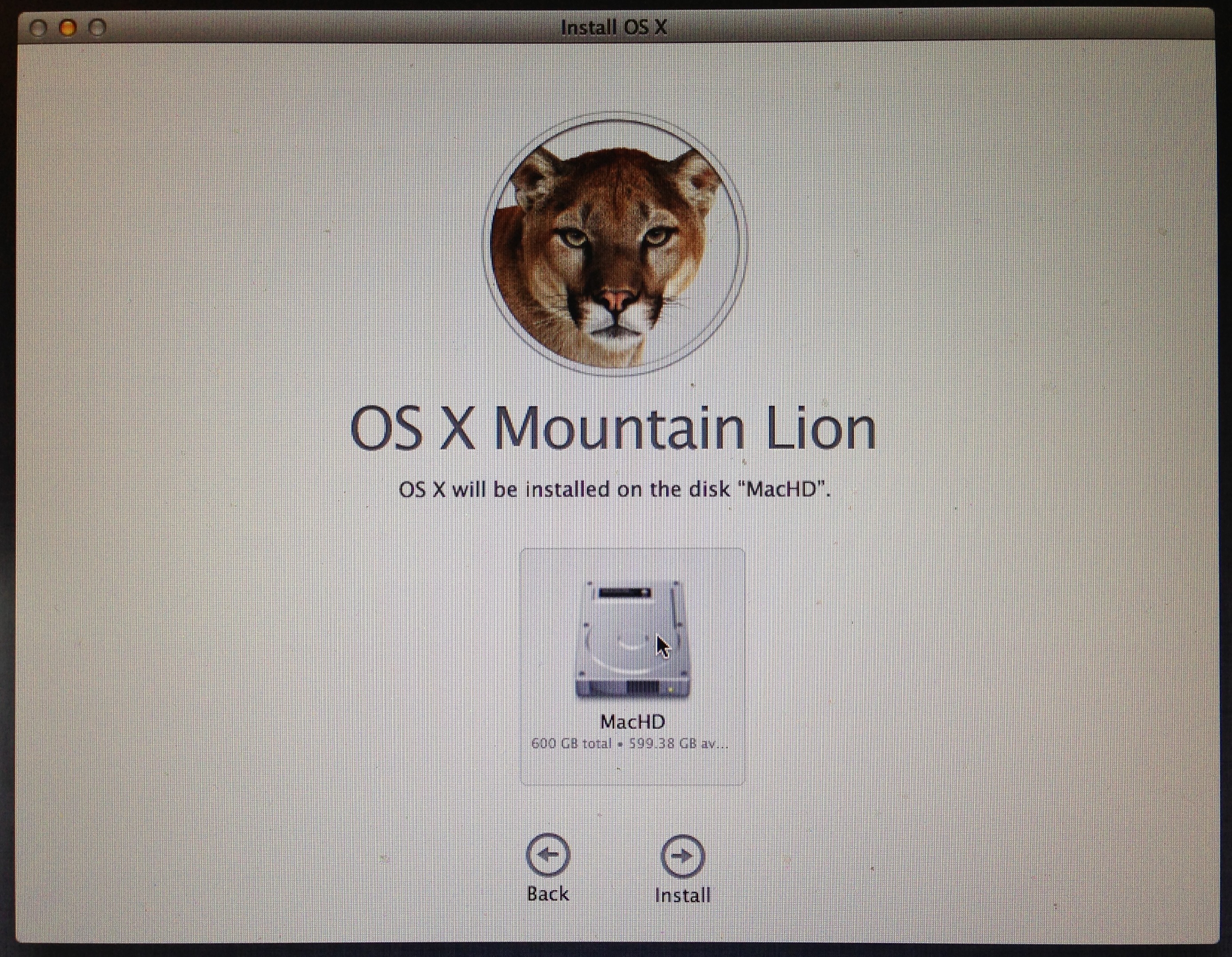
and installed nicely. After the whole process was over I’ve done similar to Jinx’s tests and the drive indeed behaves like fusion – more often used files end up on the SSD and less needed are being shuffled to the HDD.

Mission accomplished!

44 Responses to ' Apple fusion drive on late 2010 MacBook Pro '

Subscribe to comments with RSS or TrackBack to ' Apple fusion drive on late 2010 MacBook Pro '.

  1. on November 5th, 2012 at 6:40 pm

    [...] You can see screenshots and more information here:Mountain Lion on home made Fusion drive [...]

  2. on November 7th, 2012 at 4:58 am

    [...] go entirely to Tomasz Korwel a programmer, administrator and engineer who uncovered a technique to convert 2 separate drives into a single volume. Feeling adventurous I definitely had to give this a go as [...]

  3. Nag said,
    on November 21st, 2012 at 12:06 pm

    I’m going to do exactly this tomorrow.. just ordered the SSD :) How’s the performance so far?

  4. tomasz said,
    on November 21st, 2012 at 12:28 pm

    It runs great! 99% of my everyday needs fits on the SSD, the rest are just pictures and movie footage that I rarely read. So for my everyday needs it behaves like it was pure SSD, with added storage I need from time to time.

  5. Adriano said,
    on November 22nd, 2012 at 10:14 pm

    Hi

    Great job!
    I have a few questions.
    The second Terminal image show that you have a HDD of 499.2GB and a SSD of 127.7GB = 626.9GB.
    Why the free space have only 623.9 ? Where is the 3GB ?
    The next show that you create the Volume with only 600GB , you loose 23.9GB .
    The correct is not to create the volume with 623.9GB ?

  6. tomasz said,
    on November 22nd, 2012 at 11:04 pm

    The 3GB are most likely used by recovery partition – I did not check that. The 600GB size is due to my laziness – I didn’t have anything to note the exact number and didn’t want to go over so I’ve set up 600GB volume knowing that if I ever need the remaining space I can just resize it.

  7. Yeechang Lee said,
    on November 23rd, 2012 at 4:57 pm

    Tomasz, I’m very interested in doing this, but Mac Performance Guide claims (http://macperformanceguide.com/blog/2012/20121103_3-Fusion-summary-so-far.html) that it was not able to find any actual behind-the-scenes migration of files between the SSD and hard drives. Thoughts?

  8. tomasz said,
    on November 23rd, 2012 at 5:03 pm

    The only thing I can say is this. I’ve confirmed that:
    a) iostat shows that there is movement of data between drives when the system is idle
    b) iostat shows that after you repeatedly read a piese of data it will be moved to SSD
    c) contrary to SSD you can actually hear HDD and it’s easy to hear when data is being read from it and when it’s not
    Overall performance of my machine did improved greatly and I’m very happy with it.

    I’ll post a more detailed post shortly showing what I saw on my machine.

  9. Akshay said,
    on November 26th, 2012 at 3:05 pm

    Have you noticed any difference in battery performance?

  10. tomasz said,
    on November 26th, 2012 at 3:44 pm

    Not really, but I use it mostly as desktop machine (as in:always connected). I was able to work on battery for about 2h last week (Zend Studio + Chrome and wifi) and it lost less than half of the charge during that time – don’t know if it’s good or bad. keep in mind that it’s almost 2 year old battery.

  11. Diaa said,
    on November 27th, 2012 at 9:20 am

    How can i make the fusion drive without a new OSX installation?
    i’ve got my SSD with the data doubler
    what do i need later on? replace it with the optical drive and then run the system onto an installation mode and use the terminal from there to the commands?

  12. tomasz said,
    on November 27th, 2012 at 9:24 am

    If you want to have your system operating from a fusion drive I’m afraid you’ll have to reinstall it as it needs to have the fusion drive ready before first files are even copied.
    The good thing is that Os X can reinstall itself from backup properly restoring all your applications and documents.

  13. diaa said,
    on November 27th, 2012 at 1:04 pm

    Hi again,

    If you could please remove the post above this.

    I did all the steps now, can i restore from backup straight away or do i need to reinstall a new copy from apple and then do a restore from time machine?

    Thanks a lot for your help

  14. tomasz said,
    on November 27th, 2012 at 1:07 pm

    I just followed installation process. At one point it asks you if you have time machine backup and if so it gets all data from there.

  15. Diaa said,
    on November 27th, 2012 at 2:12 pm

    Okay now i did the restore. How can i see that i did everything correctly? and the system uses both storages?

    is there a place i can go to ?? ( i tried the tests from Jinx’s article but it didn’t work with me )

    Can you show me a way of doing it?

    Thanks

  16. tomasz said,
    on November 27th, 2012 at 3:37 pm

    Don’t know any particular tool that would show usage of each underlying drive in the volume, but if your total space usage is greater than your SSD you may be sure that it’s using both.

    I have run some tests on my own and they confirm that the system is shuffling data between SSD and HDD. I will post about that later. In the meantime you can use iostat 10 command (will show you disk output every 10 seconds) to see which disk is reading and writing data.

  17. LuisWerty said,
    on December 4th, 2012 at 2:02 pm

    may you recomend any hardrive caddy ???

  18. Gran Maestro said,
    on December 5th, 2012 at 5:57 am

    Great tip, thanks for sharing, however, when it comes to installing osx and make this a bootable volume the installer won’t proceed unless the logical Volume is initialized again.
    Once copying the files starts an error message shows and install wil stop.
    Tried also recovery from TimeMachine backup with no luck.

    A real pity as the whole concept was appealing.
    PS: I use identical h/w setup

  19. Perez said,
    on December 5th, 2012 at 6:01 am

    Thank you for your HowTo. i have two questions:
    - in create volume I should use the toal free space of the logical volume (in your case 623.9), right?
    - after the end of the process, should I restore from time machine or the new drive can boot using its HD data?

    thanks

  20. tomasz said,
    on December 5th, 2012 at 9:36 am

    I used this Hard Drive Caddy

  21. tomasz said,
    on December 5th, 2012 at 9:38 am

    Yes, you should use exact amount of free space you have unless you want to use it for other purposes. I’ve used 600GB just to make things easier, don’t need all that space anyway.

    I’ve restored from Time Machine just because that’s what I always do, but you can start with fresh install.

  22. tomasz said,
    on December 5th, 2012 at 9:45 am

    I never got any error messages (nor messages about initializing volume again). Are you running the newest OS X (10.8.2)?

  23. Dirk said,
    on December 7th, 2012 at 1:07 pm

    I installed this as well. Crucial 128g and 1tb hard disk.
    Have the ssd now in the hd bay, as I didn’t like performance.
    I tested the speed and that test was ok.
    But osx is not working properly. Hanging apps. Spinning ball etc..
    I installed by recovering from a backup with ccc.
    I am assuming that a lot off os files are on the hard disk and that causes a problem. Not sure what I will do next. Probably install osx on the ssd and have user data on the hard disk, except ~/Library. I might make that a zfs disk.
    Any ideas ?

  24. Anonymous Coward said,
    on December 16th, 2012 at 1:56 am

    @Dirk: I’m not sure, but it might be that CCC doesn’t work well with Fusion Drive. I’d suggest to ask them, if they’ve any experience with it.

    Other than that, I do not recommend ZFS on OSX for production systems.

  25. joe said,
    on December 16th, 2012 at 11:24 am

    hi tomaz,

    i will try this method nex week, cause i wait my caddy, buyed online :smile:
    i want to ask you one thing. can i install a windows using bootcamp ? is it the windows will read the fusion drive?
    thx

  26. tomasz said,
    on December 17th, 2012 at 10:23 am

    Hard to say – I never run Windows on my machine, just don’t have a need for that.

  27. eric said,
    on December 21st, 2012 at 11:40 am

    Hi Tomasz,

    Very helpful post! I am looking at trying a similar setup, but I was wondering if there was a particular reason you put the SSD in the original drive area and the HD in the optical bay. Any idea if it would make a difference if you left the HD in its original location? I’d prefer to leave the original HD where it is, since I assume that location is setup better for an HD in terms of shock protection, heat dissipation, etc.

    Thanks.

  28. tomasz said,
    on December 21st, 2012 at 11:58 am

    I did it to make sure that the SSD drive gets disk0 assignment. I never tested if it does or not have any influence on how the system actually works but figured it won’t hurt.

  29. eric said,
    on December 21st, 2012 at 12:07 pm

    Thanks for the quick response. Any idea how the OS knows which drive to treat as the SSD vs as the HD? I guess I’m wondering if the assignment impacts that.

  30. tomasz said,
    on December 21st, 2012 at 12:20 pm

    I assume the OS uses SMART reporting to figure out which one is SSD. Never went into details, but as some people report that Fusion is not working for them I’d assume it does matter how this whole thing is connected.

  31. Franklin said,
    on December 23rd, 2012 at 4:48 am

    Do you mind if I quote a couple of your articles as long as I provide credit and
    sources back to your website? My blog site is in the very same
    niche as yours and my visitors would certainly
    benefit from a lot of the information you provide here. Please
    let me know if this okay with you. Thanks!

  32. tomasz said,
    on December 24th, 2012 at 10:56 am

    Sure, you can share my posts as long as they are pinged back.

  33. Alex said,
    on January 18th, 2013 at 11:30 pm

    Hey everyone I’ve noticed a significant decrease in battery life after building the Fusion drive on my Mid 2010 Macbook Pro. Has anyone else experienced poor battery life?? Also Im not exactly sure how the Fusion drive mechanism works but is there a constant swapping of files between the HDD and SSD? Maybe the swapping of files often and the booting up of the HDD can cause poor battery life??

  34. tomasz said,
    on January 20th, 2013 at 7:42 pm

    I usually use power supply for my macbook pro but I’ve run it few times on battery and I got good 3.5h of battery time each time. It probably depends on your usage patter. The fusion should stabilize over time with most often data on SSD and only seldom used files on HDD which should actually increase battery time. But in the beginning it shuffles data back and forth all the time so initial performance may be worse.

  35. Jamie said,
    on January 24th, 2013 at 11:40 am

    Tomasz, I did the same operation on a 2010 13″ MacBook Pro, and it works well, except that it now doesn’t reliably wake from sleep. I have seen mention of this in passing in a forum post or two, but can’t find discussion about it. Are you experiencing this or seen discussion of it?

  36. tomasz said,
    on January 24th, 2013 at 11:46 am

    No I did not experienced any problems with waking up. Works great here.

  37. Jamie said,
    on January 27th, 2013 at 8:38 pm

    I think the problem was that I put the SSD in the optical bay. On further research I see that this has caused problems for years for people. This Mac is also experiencing every 10.8 related glitch and beachball known to man (even though I installed 10.8 from scratch).

  38. Pete said,
    on January 30th, 2013 at 9:51 pm

    I just built a Fusion drive on my 17″ 2008 MBP (Pre-Unibody) Loaded a 240g OWC SSD in the main location and placed a 750g WD Scorpio Black HDD in the Opti-Drive slot. Worked a treat. I used a thumb drive with RECOVERY Disk on it and ran TERMINAL and the OSX reinstall from that, then MIGRATION Assistant to bring all my goodies over from a cloned drive. Apps open very fast and it has a good general feel to it. Encountered a problem with iTunes using up more than 50% of my RAM and the occasional ‘nothing happens for 10 seconds beach ball’, but overall I am happy with the outcome. :smile:

  39. on February 1st, 2013 at 10:22 am

    Just a note. Isn’t it healthier to let drives independent? I find this solution perfect if the SSD is 16 or 32 GB, if at 64 or more, perhaps it is better to let system run on the SSD, and move the rest to disk 2.
    another question: if Windows is needed, does your solution work with Boot Camp (or, perhaps better phrased), does BC work OK if disks are fused in this way?

  40. on February 1st, 2013 at 10:23 am

    and, yes, I forgot: if BC works OK, does Windows install?

  41. tomasz said,
    on February 1st, 2013 at 10:39 am

    The point of fusion is to provide best possible performance based on what you do the most. Running system on SSD and data on HDD will leave you with some unused (or seldom used) applications taking space on SSD and with data that is always slow to read. Imagine situation when you are working on a movie from vacation, you have 10-15GB of footage and you work on it in iMovie. Fusion will shuffle data around and put that footage on SSD so you’re work goes much faster. Then when you are done and clip is posted to youtube, fusion will move the footage back to HDD and release the place for things that you’ll be working on next. This shuffling data around is something that gives you ‘speed of SSD, capacity of HDD, most of the time’.
    As when it comes to Windows – I have never ever used boot camp before, so I can’t help you here.

  42. on February 1st, 2013 at 1:25 pm

    I see. therefore you recommend fused disks. I am not a Windows user either, I thought you were curious to test it, I would have been.

  43. on February 19th, 2013 at 9:10 pm

    [...] of creating a FusionDrive and running some tests to prove that it works as advertised. Since then, Tomasz Korwel , Cocoanetics and Thomas Einwaller all performed the operation on differing hardware so I’m [...]

  44. on April 20th, 2013 at 2:10 pm

    [...] Macs I wondered if this might be possible with my configuration too. Some more googeling brought up this post of Tomasz Korwel who created a bootable Fusion Drive on his MacBook Pro Late 2010 – which me made me very sure [...]

Leave a reply

ZEND Certified Engineer
Listed on BlogShares

Tomasz Korwel is a participant in the Amazon Services LLC Associates Program, an affiliate advertising program designed to provide a means for sites to earn advertising fees by advertising and linking to amazon.com